
- All
- Product Name
- Product Keyword
- Product Model
- Product Summary
- Product Description
- Multi Field Search

Messy PC cables can ruin a clean build. They also block airflow and make upgrades harder.
A cable sleeve helps you fix both problems fast. In this article, you’ll learn how to sleeve your PC cable step by step, choose the right method, and finish it neatly for a pro look.
Shut the PC down and unplug the PSU. Press the power button to drain residual power, then take clear photos of every connector you touch, since they become your pinout reference later. Label each wire before you depin anything using tape flags or numbered tags, and plan your colors and sleeve length first to avoid “almost matching” cables in the case. If you work on PSU cables, stay on the cable side and never open the power supply housing.
Depinning gives the cleanest sleeved look because the cable sleeve can sit under the connector. Use a proper pin remover for your connector type, since ATX, EPS, and PCIe pins often need different tools. Insert the tool to release the retention tabs, then pull the wire gently and avoid yanking the insulation. If a pin fights back, stop and reset the tool, because bent tabs can cause loose contact later. Place pins in order on a labeled tray, so repinning stays calm and accurate.
Measure each wire run before you cut, then add extra length for combing and routing curves. Cut your cable sleeve slightly longer than the wire, since it can shrink a little when it grips. Use a hot knife for PET braided sleeving to seal the edge and reduce fraying. If you lack a hot knife, wrap tape at the cut point, cut through it, then seal ends later. Keep cuts square and repeatable, because uneven cuts create bumps under the finish.
Slide the sleeve from the wire end inward, and twist it gently if friction is high. Avoid forcing it over sharp pin ends, since that can snag fibers. Secure each end using a short heat shrink piece, then heat it evenly and rotate the wire for symmetry. Some builders prefer heat-shrinkless finishing for a cleaner aesthetic, but it needs tight cuts and careful melt control. Keep both ends tight, because a loose end can “walk” during cable combing.
Repin one connector at a time and match each wire to your photos and labels. Listen for the click when the pin locks, then do a light tug test to confirm it seats properly. Check orientation before pushing it fully, since a reversed pin can break the housing latch. Test the cable before closing the case using a PSU tester or a safe bench test, then confirm fans spin and the system posts normally before final routing.
Tip: Build one short cable first, then scale up.
Item | Why you need it | Good default choice |
Cable sleeve | Main cosmetic and protection layer | PET braided sleeving for clean lines |
Heat shrink | End finishing and sleeve retention | 2:1 shrink, small diameter range |
Depinning tool | Removes terminals without damage | ATX/EPS/PCIe specific remover set |
Heat gun | Consistent shrink and sealing | Low setting plus controlled airflow |
Cable combs | Keeps wires parallel and straight | Match wire count and spacing |
Labels or tape flags | Prevents pinout mistakes | Numbered tags or masking tape |
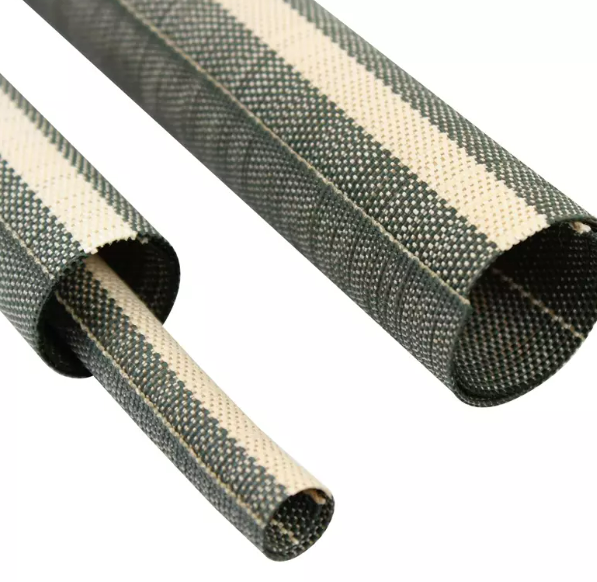
PET braided sleeving is a common PC option because it holds shape and looks crisp in photos. It also resists abrasion during routing work, and its weave breathes better for airflow. Paracord gives a softer, matte finish and can feel thicker on single wires, while also hiding minor wire color mismatch. Both can work as a cable sleeve choice, so pick based on your theme and how you handle cables during builds. If you want tight comb spacing and straight lines, PET often feels easier to manage.
Heat shrink controls sleeve ends and improves durability during combing. Use a smaller size for single-wire sleeving and a larger size for multi-wire bundles, and a 2:1 ratio fits most PC cable finishes. Heat it evenly and let it cool fully, since overheating can gloss the sleeve or warp tubing. If you want a hidden finish, keep it short, and if you want stronger retention, keep it longer. Good heat shrink use helps your cable sleeve look cleaner and stay stable over time.
A proper depinning tool prevents terminal damage and saves time. Keep small needle-nose pliers nearby to adjust retention tabs when needed, plus wire cutters for clean tape cuts. Use a ruler or simple jig for repeatable sleeve lengths, and keep a marker for quick labels and notes. Work on a bright surface, and use a small tray so pins do not roll away. Good tools keep your cable sleeve workflow consistent and reduce rework.
Cable combs create straight, parallel lines and help prevent twist during routing. Labels keep complex pinouts organized, and a heat gun offers even, repeatable shrinking compared to open flame. A hot knife gives the cleanest PET cuts and speeds batch work for full sets. If you build for clients or do repeat projects, these upgrades reduce mistakes and improve finish quality. They also make your cable sleeve results easier to standardize across different builds.
Note: Depinning errors cause most “dead cable” failures.
Method | Best for | Trade-off |
Depinning + sleeve | Cleanest look on PSU cables | Needs tools and strict pinout control |
In-place sleeving | Cables you cannot depin | Bulkier ends and visible transitions |
Splice + sleeve | Custom length and routing | Highest skill and risk (needs verification) |
Hybrid | Mixed harness types | Needs planning for a consistent look |
Depinning is the cleanest option because the cable sleeve can start under the connector lip. It hides ends, improves spacing, and makes cable combs work better. You can sleeve each wire for a premium look or sleeve small bundles to save time. The main risk is pinout mistakes, so photos and labels are non-negotiable. Work one connector at a time to reduce swaps and keep the process controlled.
Some cables use sealed housings or tiny plugs, so depinning is not worth it. In-place sleeving means sliding or wrapping sleeving over the cable, often using a split cable sleeve. The finish near the connector can look thicker, so use short heat shrink to taper the transition. Matching colors also helps hide the boundary line. This method is faster for beginners and avoids damaging fragile terminals.
Splicing helps when you want shorter, cleaner runs, especially in SFF builds. It can reduce clutter and improve symmetry for combed wires. Still, it raises electrical risk, since weak joints can heat up under load (needs verification). Use correct wire gauge, solid insulation, and continuity tests. If you are unsure, avoid splicing PSU cables, because a cable sleeve cannot fix a bad connection.
Use depinning for modular PSU cables when possible for the best finish. Use in-place sleeving for front-panel leads, since they are low-current and often use small housings. For fan cables, split sleeving works well if you keep connectors, and labels help if you re-pin. Pick one visual style per cable group, then keep it consistent across the build.
Tip: Standardize one method per cable group for consistent results.
Heat shrink finishing is the most repeatable approach. It secures the cable sleeve end and reduces fraying without special techniques. Cut the sleeve, position it, add tubing, then heat slowly for an even shrink. Keep tubing short for a cleaner look or longer for stronger retention. Let it cool before combing, since warm tubing can shift and misalign.
Heat-shrinkless finishing removes the visible band near the connector. It relies on sealed cuts and careful tuck-under, so it needs steady hands and repeatable lengths. A hot knife helps seal PET edges before you tuck them cleanly. Some builders use a tiny glue dot (needs verification), but keep adhesive away from pins. Test one wire first, because consistency matters more than speed.
Branch points can ruin an otherwise clean build. Plan splits before cutting, then use combs to guide separation. Short shrink pieces can control where the split begins. For thicker trunks, you can sleeve the main run, then sleeve branches separately. Keep bends gentle at the split to reduce stress and keep the cable sleeve aligned.
Pick your palette early and apply it across visible runs. Use one sleeve color for power lines, and a second color for signals if you want contrast. Match combs and heat shrink to the sleeve color for a cleaner finish. Do a quick mock layout before final routing, since small tweaks can improve balance. A consistent cable sleeve theme often looks “factory made” in photos.
Problem | Likely cause | Fast fix |
Sleeve won’t slide | High friction or tight weave | Twist sleeve, use a guide tube |
Fraying at cuts | Scissor cut or rough handling | Hot knife cut, seal ends |
Pin won’t lock | Bent retention tabs | Reset tabs, reinsert carefully |
Cable looks uneven | Length mismatch or twist | Re-cut, re-comb, re-route |
Some sleeves grip wire jackets hard, which is common on tight PET weaves. Twist the sleeve as you push it, because it reduces friction and helps it “walk” forward. You can also use a temporary guide tube, such as a thin straw, to help start the sleeve. Keep the wire clean and dry during install, since oil from hands can attract dust later. If it still binds, size up slightly, because a too-tight cable sleeve will fight combing and routing.
Fraying starts from rough cuts and handling, so use a hot knife for PET whenever possible. If you use scissors, tape the cut point first, then seal ends right after you cut. Uneven cuts cause bulges under heat shrink, so re-cut square and keep lengths consistent. Melted spots usually come from high heat or open flame, so use a heat gun and keep distance steady. If a section looks bad, replace it, because a clean cable sleeve finish is worth the extra minutes.
A pin should click into place, and if it does not, stop and inspect it. Check retention tabs, since they may flatten during removal, and lift them slightly using a small tool. Confirm pin orientation matches the housing key, and do not force it because it can crack the plastic. Also check whether a sleeve edge blocks insertion, and trim the sleeve back if needed. Correct pin lock keeps your cable sleeve project safe and reliable.
Some PSU harnesses use double-wire terminals for sensing or load balance (needs verification). These wires can be harder to depin cleanly, so label both wires before you change anything. Keep their relative length consistent for neat routing, and if you sleeve them separately, keep colors consistent. If you sleeve them as a pair, use a larger sleeve size. Avoid cutting or re-terminating unless you understand the circuit, and when unsure, keep the original structure, since a cable sleeve job should not change electrical intent.
Note: If you feel unsure, stop and verify pinout first.
Test before closing the case. Check each connector for full pin seating and do a gentle tug test on each wire to confirm no pins back out. Use a PSU tester if you have one, or do a safe bench boot test. Watch for errors, smells, or heat, and if anything seems off, power down fast. A clean cable sleeve look means nothing if the cable fails under load, so safety checks protect your parts and your time.
Combs keep wires parallel and evenly spaced, and they also improve visual symmetry. Slide combs on after the sleeve cools fully, start near the connector, then work outward. Avoid twisting the harness during combing, since twist creates uneven sleeve tension and bumps. Route cables along case channels and anchor points, and use soft ties to hold shape without cutting fibers. Keep runs away from fan blades and sharp edges, because a stable cable sleeve route stays straight for months.
Sleeving changes how cables sit in the case. It can improve airflow by reducing tangles, yet it can also create thicker bundles that block tight intake paths. After sleeving, check fan clearance and airflow routes, and keep power bundles off hot GPU backplates. Avoid pressing bundles against radiators and VRM heatsinks. If temps rise, reroute first before changing fans, since routing fixes often solve airflow issues quickly. A good cable sleeve job should not raise system temperatures.
Sleeves can wear over time from rubbing, so look for fuzzing, thinning, or discoloration. Check ends for creep or loosened shrink, and if you see exposed jacket, re-sleeve the section. If a wire feels loose in a pin, replace the cable, and do not ignore intermittent power drops because they can signal a bad terminal lock. Keep spare pins and a remover tool on hand, since it makes repairs faster. A maintained cable sleeve setup stays clean and reliable.
PC cable sleeving is easier when you plan first. Depin carefully, cut cleanly, and finish ends so the sleeve stays tight.
Test the cable before closing the case. Good routing and combs keep lines straight and airflow clear.
If you need reliable sleeving materials, Dongguan Zhonghe Electronics Co., Ltd. offers durable braided cable sleeve options and custom sizing support for builders and teams.
A: A cable sleeve covers wires to improve looks, reduce wear, and keep routing tidy.
A: Depinning gives the cleanest cable sleeve finish, but split sleeves work when you can’t depin.
A: A PET cable sleeve holds shape and breathes better; paracord feels softer and hides small flaws.
A: Cut cleanly, then secure each cable sleeve end using heat shrink or a sealed cut.
A: Tight weave adds friction; twist the cable sleeve, use a guide tube, or size up slightly.
